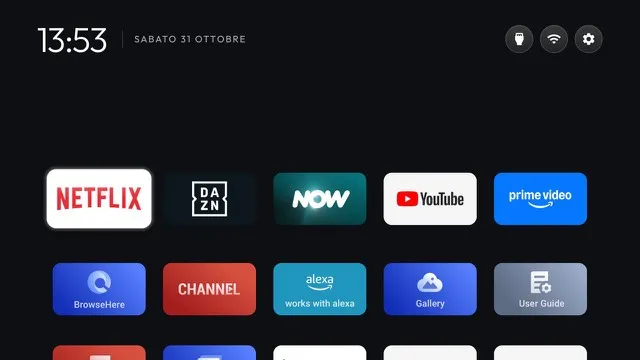
How to remove ads from your Android TV and Google TV home screen
Sponsored rows, autoplay trailers and pop-ups on your TV Home? Here are the settings that help, what they can’t fix, and how to get a clean, ad-free Home.
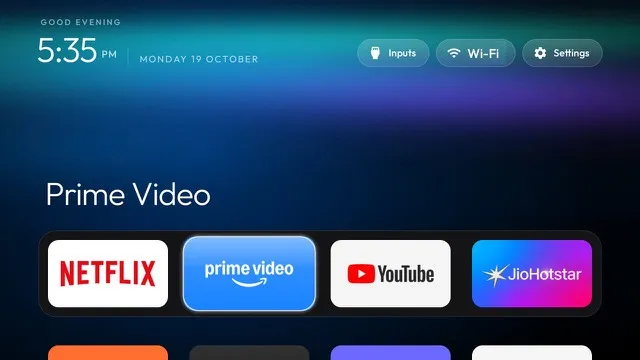
You bought a TV, and its Home screen is selling you things: a giant “Weekend deal” banner, rows of sponsored apps, trailers that start playing on their own, and the occasional pop-up asking you to install something. On Android TV and Google TV most of this comes from the stock Home (the launcher) and from a handful of preinstalled services that feed it.
This guide covers three levels of fixing it, from the settings anyone can change in two minutes to a fully clean Home.
Why your TV Home is full of ads
The Home on Android TV and Google TV isn’t just an app launcher. It’s a recommendation surface: the top banner, the “For you” rows and many of the tiles are content and promotions pushed by the platform, by the TV maker and by partner apps. Several background services exist only to fetch, rank and track these recommendations.
That’s why switching apps around doesn’t help: the ads are part of the Home itself.
Level 1: the settings you already have
Before touching anything else, check these menus. Names can differ by model and software version, but they’re usually close.
On Google TV
- Apps only mode: Settings › Accounts & Sign In › your profile › Apps only mode. It hides personalised recommendations and most of the “For you” content, leaving your apps. You lose some Google Assistant features while it’s on.
- Ads personalisation: Settings › Privacy › Ads, then turn off ads personalisation and reset or delete the advertising ID.
- Usage & diagnostics: Settings › Privacy › Usage & diagnostics, off.
On Android TV (older interface)
- Settings › Device Preferences › Home screen: turn off video previews and audio previews, and use Customize channels to switch off every channel row you don’t want.
These switches reduce what you see, but the services behind the ads keep running, and some TV updates switch settings back on. Check again after a firmware update.
Level 2: switch off the services behind the ads
Android lets you disable apps that came with the system, without root and without deleting anything. A disabled app stops running, stops showing its content and stops sending data, and you can turn it back on at any time.
Doing this by hand means turning on Developer options on the TV, connecting with a computer and typing adb commands for each package, which is slow and easy to get wrong: some packages look like junk but are needed for the remote, for casting or for the store.
This is exactly what TV Cleaner AI does for you, from your iPhone:
- it connects to the TV over your Wi-Fi (no cables, no computer);
- it checks what’s running against lists tested by the community on your exact model;
- it groups what it finds into ads, telemetry and preinstalled apps, and switches them off in one tap.
Nothing is deleted, and there’s a button to undo everything.
Level 3: replace the Home
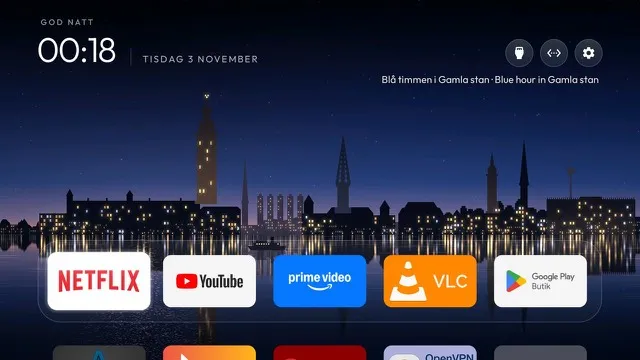
Even with the ad services disabled, the stock Home is still built around recommendations. The cleanest result is a different Home: a calm screen with just your apps, your wallpaper and a clock.
TV Cleaner AI installs a clean Home with a free base theme. With Premium you get 28 themes, your own photo as a wallpaper, your colours, a glass app bar and a greeting with your name. You can always go back to the original Home from the app.
Is it safe?
Disabling isn’t uninstalling. The system keeps every app; it just doesn’t run it. If something you need stops working, you turn that one app back on. With TV Cleaner AI, apps that are risky to switch off are marked as such, and Restore brings back one app or the whole TV.
Quick checklist
- Turn on Apps only mode (Google TV) or switch off channel rows and previews (Android TV).
- Turn off ads personalisation and reset the advertising ID.
- Turn off usage & diagnostics.
- Disable the ad and telemetry services, ideally with a model-tested list.
- Replace the stock Home with a clean one.
- Check again after every TV software update.